Windows 11 runs well on capable hardware, but it can feel heavy on older machines or after months of use. Here is a practical guide to the changes that genuinely make a difference, in roughly the order we would try them.
Start with the easy wins
Trim your startup programmes
The more apps that launch when you switch on, the longer everything takes to settle. Open Task Manager (Ctrl + Shift + Esc), go to the Startup apps tab, and disable anything you do not need immediately. Chat apps, update helpers, and toolbars are common offenders.
Install your updates
It sounds counterintuitive when you are trying to save time, but pending Windows updates and driver updates often fix performance bugs. Go to Settings, Windows Update, and let it finish. Restart afterwards.
Free up disk space
Windows needs breathing room. If your drive is nearly full, performance suffers. Use the built-in Storage settings to clear temporary files, and uninstall programmes you no longer use.
Tune the visual settings
Windows 11 uses animations and transparency that look smart but cost a little performance on weaker machines. Search for "Adjust the appearance and performance of Windows", then choose Adjust for best performance, or switch off transparency under Settings, Personalisation, Colours. On an older laptop, this is noticeable.
Check what is using your resources
In Task Manager, the Processes tab shows what is using your CPU, memory, and disk. If one programme is constantly near the top, that is your clue. Background sync tools and overzealous antivirus suites are frequent culprits. If something unfamiliar is hammering your system, it is worth checking our guide on the signs of a virus.
Turn off unnecessary background apps
Many apps keep running in the background even when closed. Under Settings, Apps, Installed apps, you can review each one and limit its background activity. Fewer things running quietly means more resources for what you are actually doing.
The change that matters most
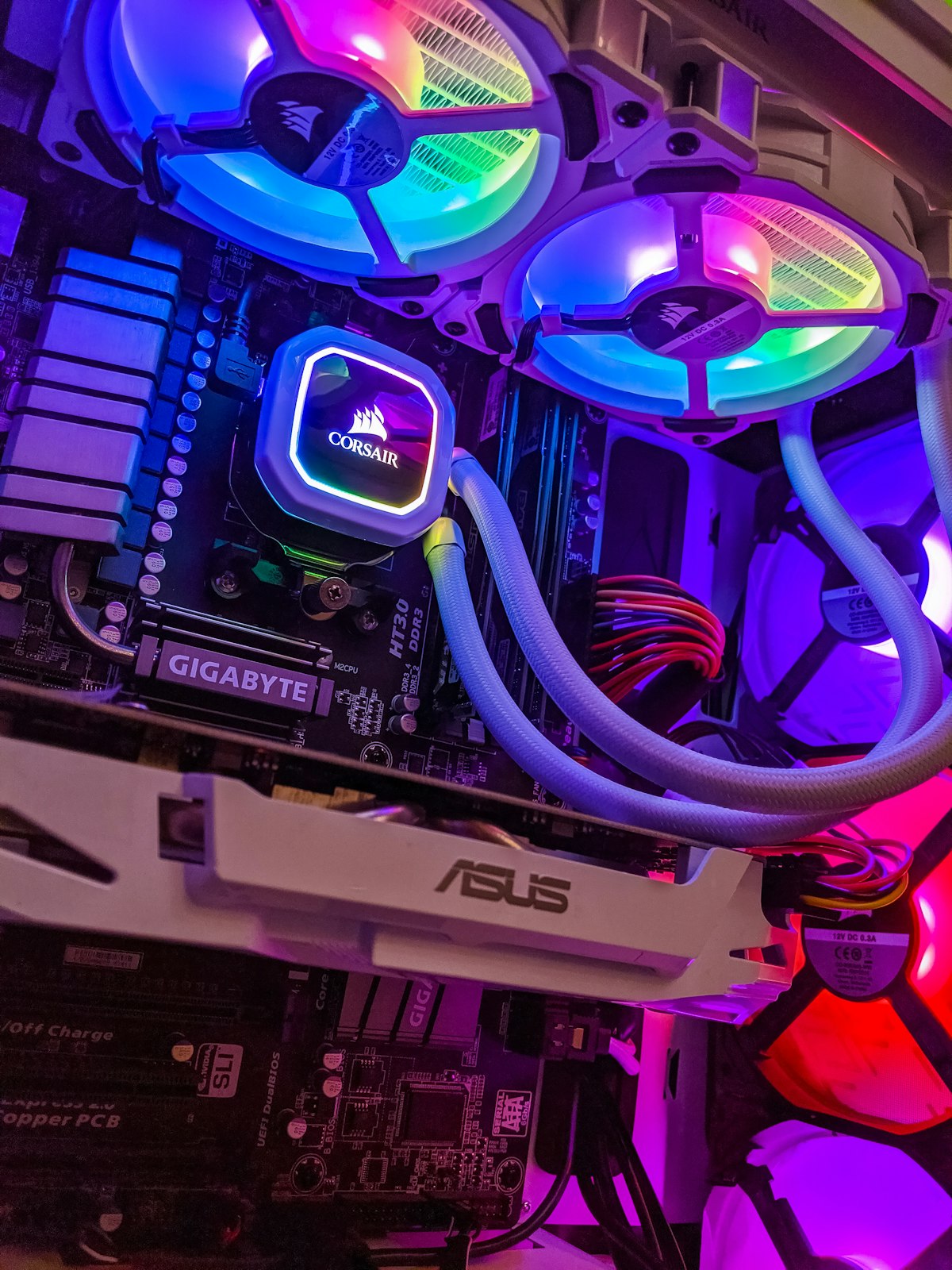
If you have worked through the software side and Windows 11 still drags, the issue is almost always hardware. The two big levers are the drive and the memory:
- An SSD is the single biggest improvement for an older machine. Our SSD vs HDD guide explains why.
- More RAM helps if you run many tabs or heavier software and your memory sits near full.
No amount of settings tweaking will make a mechanical hard drive feel like an SSD. If Windows 11 was sluggish from day one, that is usually the reason.
A maintenance habit that keeps it fast
- Restart properly at least once a week
- Keep 15 to 20 percent of your drive free
- Review startup apps every few months
- Run updates regularly rather than postponing them
If it still feels slow
Sometimes the quickest path is a clean professional setup or a hardware upgrade. We can diagnose exactly what is holding your machine back and quote you before any work. See our computer repairs for what that covers.
We have been tuning and upgrading Windows machines on the South Coast since 2010. Call 039 314 4359 for advice, or book a repair and we will sort it out.