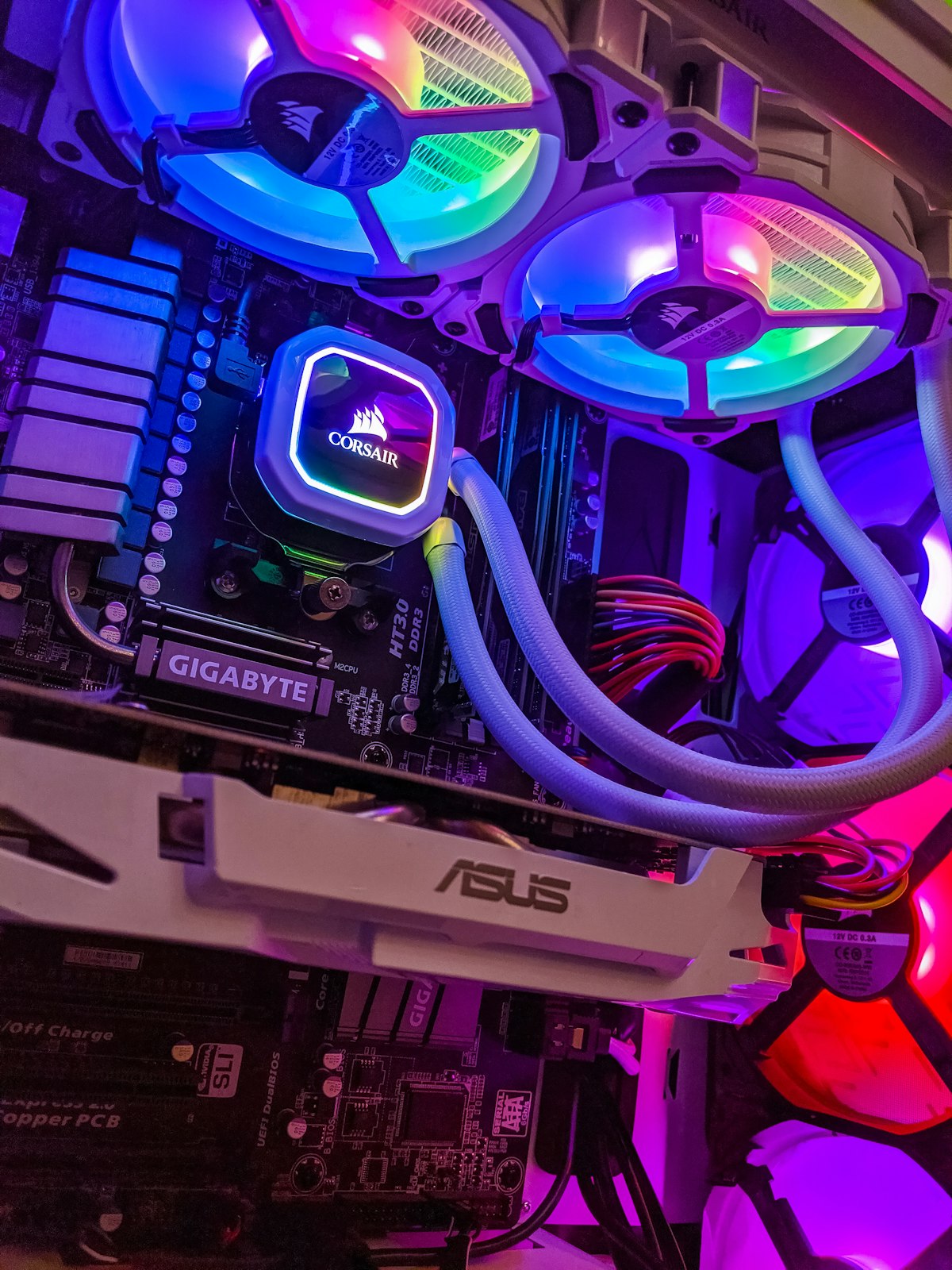
If your laptop runs hot enough to warm your lap, the fan howls constantly, or it slows to a crawl and shuts off without warning, it is overheating. This is not just uncomfortable, sustained heat shortens the life of the components inside. The good news is that most overheating has a clear cause and a practical fix. Here is how laptop cooling works and how to cool yours down.
How a laptop keeps itself cool
Inside your laptop, the processor and graphics chip produce heat whenever they work. A small heatsink draws that heat away, a fan pushes air across it, and the warm air leaves through vents in the sides or base. Between the chips and the heatsink sits a thin layer of thermal paste that helps heat flow across. When any part of that chain is blocked or worn, heat builds up faster than the laptop can shed it, and temperatures climb.
What thermal throttling is, and why it slows you down
Laptops protect themselves from heat damage by deliberately slowing the processor down when it gets too hot. This is called thermal throttling. So overheating does not just feel hot, it makes the machine sluggish. If your laptop is fast when cool but crawls once it warms up, heat is the likely cause. If it gets hot enough, it will shut down entirely to protect itself. A laptop that is slow in general can have other causes too, which we cover in why your laptop is so slow, but heat-driven slowdowns have a telltale pattern: fine when cold, slow when hot.
The common causes of overheating
- Dust-clogged vents and fan. The most common cause by far. Over the years, dust builds up in the vents and on the fan blades, choking airflow. This is gradual, so people rarely notice until the fan is loud and the machine is hot.
- Dried-out thermal paste. The paste between the chip and heatsink dries and hardens over time, usually after a few years, and stops transferring heat well. This is normal ageing.
- Blocked airflow. Using a laptop on a bed, couch, cushion or carpet blocks the vents underneath. Soft surfaces are the enemy of laptop cooling.
- Heavy software. Demanding tasks like gaming, video editing or many browser tabs make the chips work harder and run hotter. Background malware can do the same quietly.
- High room temperature. On a hot South Coast day, a laptop already near its limit has less margin to spare.
Fixes you can try yourself, software first
Start with the easy, no-risk steps before opening anything.
- Use it on a hard, flat surface. A desk or table lets air reach the vents. If you use it on your lap often, a simple laptop stand or cooling pad helps.
- Check what is running. Open Task Manager (Ctrl + Shift + Esc) and look at the Processes tab. If something is using the processor hard when you are not doing much, that is your heat source. If it is unfamiliar, it is worth ruling out malware.
- Keep the air moving. Do not box the laptop in against a wall or in a tight space. Give the vents room.
- Update Windows and drivers. Occasionally a driver bug keeps the hardware working harder than it needs to.
The hardware fix: an internal clean and re-paste
If the software side is sorted and the laptop still overheats, the cause is almost always physical: clogged vents, a tired fan, or dried thermal paste. The proper fix is a thermal service: opening the laptop, clearing the dust from the fan and heatsink, and replacing the old thermal paste with fresh paste. On most laptops this brings temperatures right back down and the fan noise with it. It is one of the most satisfying repairs because the difference is immediate.
Safe DIY versus when to get help
| Safe to do yourself | Better left to a workshop |
|---|---|
| Use on a hard surface, clear the area around the vents | Opening the laptop to deep-clean the fan and heatsink |
| Blow dust from the outside vents with short bursts of compressed air | Removing and replacing thermal paste |
| Close heavy programmes, check for runaway processes | Replacing a failed or noisy fan |
A quick word on compressed air: short bursts from the outside, with the laptop off, are fine and can clear loose dust. Do not blow so hard that you spin the fan wildly, and never poke objects into the vents. Opening the laptop properly, where the real dust lives, is fiddly and varies a lot between models, so unless you are confident it is worth having it done.
Why overheating is worth fixing promptly
Heat is hard on electronics. A laptop that runs hot for months stresses the processor, the battery and the drive, and can shorten the life of all three. Sorting out cooling early is far cheaper than replacing parts cooked by months of heat.
When to bring it in
If your laptop is hot to the touch, the fan runs flat out, or it shuts down under load, a proper internal clean and re-paste usually fixes it for a fraction of the cost of damage left to build. We will open it carefully, clean the cooling system, fit fresh thermal paste and test the temperatures before and after. See what our computer repairs cover.
We have cooled down plenty of overheating laptops on the South Coast since 2010, and it is one of the jobs that makes the biggest difference. Call 039 314 4359 to talk it through, or book a repair and we will take a look.